
Lovable App Broke After an Edit: The Diagnosis Order That Actually Works
One prompt breaks a screen you never touched. That's almost never data loss, it's shared code. The right diagnosis order gets version history to fix it in minutes instead of more prompts making it worse.
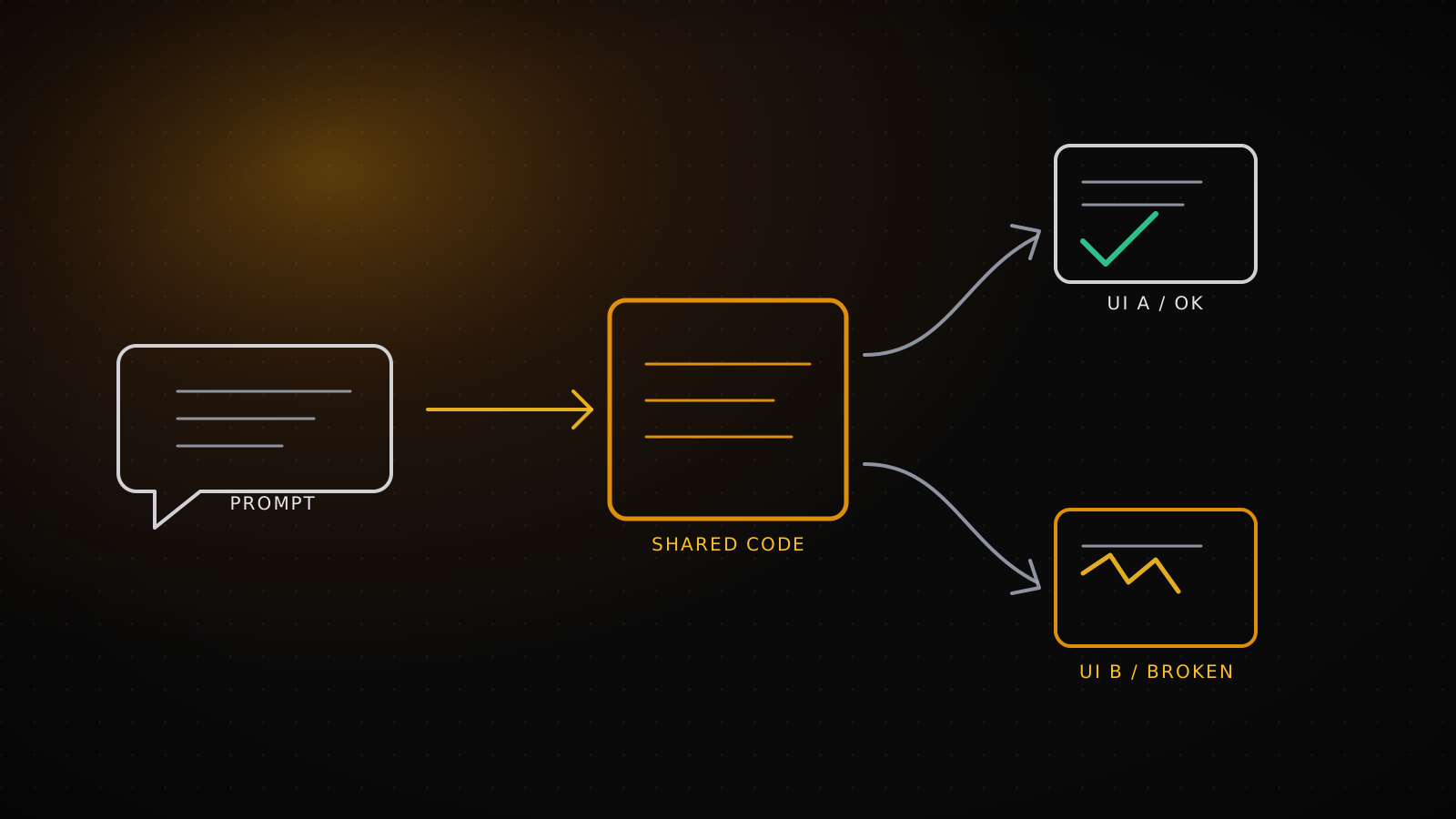
When a Lovable prompt breaks a screen you never touched, the cause is almost never lost data. It's a shared component or helper function whose contract just changed under a feature that depends on it. Diagnose it in the right order and version history undoes it in minutes. Diagnose it in the wrong order and the next prompt you send just builds another layer on top of the same break.
Summary
Check Lovable's status page and your cache before you touch anything, both rule out causes that have nothing to do with your prompt. Then find exactly which file the last edit touched and diff it on its own, that's almost always where the break shows up. Restoring only the broken contract, not the whole commit, keeps the feature you just built. If sync to GitHub is on, push a new commit rather than rewriting the synced branch's history. If the break touched auth, RLS or a secret, the diagnosis is over and it's a handoff conversation, not another prompt.
The diagnosis order, at a glance
Rule out status and cache
Check status.lovable.dev, then hard-refresh. Neither is your prompt's fault.
Find where it last worked in History
Spot how many versions since then touched files outside the broken screen.
Scope the diff to one file
The broken line is almost always in a shared helper, not the screen itself.
Pick the right undo, not the biggest one
Revert, revert and resend, or a scoped fix commit, each loses something different.
First confirm it's actually the last prompt, not something else
"It broke" can mean three different things, and two of them have nothing to do with the edit you just sent. Check Lovable's status page (status.lovable.dev) first, if there's an active incident the rest of this diagnosis is wasted effort. Next, hard-refresh and clear the browser cache, a chunk of "it's broken" reports are a stale build sitting in cache, not a real regression. If neither explains it, there's exactly one explanation left: your last prompt changed something, and that change landed somewhere you weren't looking.
What to actually look at in the history Lovable already kept
Open the History toggle in the editor's top bar, or the + menu next to the chat input, then Project, then History. The panel has two tabs: History lists every version, Bookmarks lists the ones you marked as stable. Click any version in the list and it opens in a snapshot view, nothing changes, you're just looking.
What you're hunting for is one thing: which version last had this screen working, and how many versions between then and now touched files that have nothing to do with the screen you noticed broke. If the answer is "several," the break is almost certainly sitting in a shared file.
Scope the diff to one file and the broken line shows itself
If the project syncs to GitHub, every edit lands as a commit on the synced branch. Find the file behind the screen that broke, run git log --oneline -- <file> to find the last commit that touched it, then scope the diff to just that file instead of reading the whole commit. Here's a real case shaped the way this actually happens: a prompt says "add a checkout button with the total," it touches a shared price-formatting helper to get there, and a screen that never asked for a checkout button (the cart total) breaks because it calls the same helper. These are real commands, run against a sample repo shaped the same way, not illustrations.
$ git log --oneline
b966a52 Add checkout button with price
e2a2260 Add cart total display

$ git diff HEAD~1 HEAD -- src/lib/format.ts
diff --git a/src/lib/format.ts b/src/lib/format.ts
index 7bac477..835dfdf 100644
--- a/src/lib/format.ts
+++ b/src/lib/format.ts
@@ -1,3 +1,3 @@
-export function formatPrice(cents: number) {
-  return `${(cents / 100).toFixed(2)} TL`;
+export function formatPrice(amount: number) {
+  return `${amount.toFixed(2)} TL`;
 }
Nothing about this diff looks dangerous on its own. The checkout button now does its own math expecting a full amount, but the cart total still calls the same function the old way, so it renders a number a hundred times too large. The commit message never mentions the cart, which is exactly why reading the full commit is slower than scoping the diff to the one file that actually changed underneath you.
The fix that keeps the new feature is narrower than reverting the whole commit: pull the old contract back for just that file, keep everything else.
$ git checkout HEAD~1 -- src/lib/format.ts
$ git commit -m "Revert formatPrice contract, keep checkout button"
$ cat src/lib/format.ts
export function formatPrice(cents: number) {
  return `${(cents / 100).toFixed(2)} TL`;
}
That's a different move than reverting Lovable's whole commit, which would also remove the checkout button you just asked for. The next section is about which of these three moves to reach for and when.
Revert, revert and resend, or a scoped fix commit: which one fits
| Move | What it does | Touches the database? |
|---|---|---|
| Revert | Restores the whole project's code to an earlier version and redeploys edge functions to match. Takes the new feature with it. | No, data stays as it is |
| Revert and resend | Edits a past chat message and continues from there with new instructions, without losing the history in between. | No |
| Scoped fix commit | Restores only the shared file's old contract, keeps every other change since | No |
Reach for a plain revert when you'd rather lose the last few prompts entirely than untangle them. Reach for revert and resend when the last prompt's idea was right but the execution went sideways, and you want to try it again with better instructions. Reach for a scoped fix commit when, like the case above, the regression and the feature you want to keep are sitting in the same commit and only one of them is the problem. One limit worth knowing before you plan around it: very old versions can still be previewed but Lovable will tell you it can't restore that far back, so don't let a real regression sit for weeks before you act on it.
If GitHub sync is on, undoing a commit and undoing a line aren't the same move
Git sync in Lovable is two-way and automatic: edits made in Lovable land as commits on the synced branch, and commits pushed to that branch from outside flow back into the project. It tracks one branch at a time, usually main, chosen in Project settings. Lovable keeps its own copy of that branch, which is exactly why force-pushing, rebasing or squashing its history from outside causes real conflicts. The documented way to undo something is the same move we ran above: add a commit that reverts it, rather than rewriting history. A normal push of a normal revert commit is the supported path, because the sync is designed to carry it back in. What breaks things is trying to rewrite the branch's past, not add to its present.
Fixable inside Lovable, or a signal to get the code out
Most of what the steps above find is fixable inside the tool: a shared helper's contract changed, a scoped revert or a resend fixes it, and you keep building. Treat it differently when the diff touches row-level security policies, auth, or a secret, that's the exact failure mode we cover in what Lovable and Bolt apps leave exposed, and a prompt is not how you close a security hole you just found by accident. Treat it differently too if the break is older than the versions Lovable will let you restore, or if it spans enough files that a scoped fix stops being scoped. At that point the question is no longer "what changed," it's "does this codebase need a second set of eyes before the next paying user touches it," and our build-it-yourself-or-hire calculator is a faster way to see which side of that line you're on than guessing.
This diagnosis order assumes the code still exists and the bug is a regression, not a vanished project. If you've already decided the next step is getting the code onto infrastructure you control rather than diagnosing one more break, our piece on exporting Lovable code to GitHub covers what travels and what doesn't. And if the codebase itself needs a real review before it's trusted with production traffic, that's where our AI project completion work starts, reading what exists before changing anything.
Set this up so the next edit doesn't cost you a diagnosis
Bookmark a version right before you send a prompt that touches anything shared, a file more than one feature depends on. That turns "revert to some version from an hour ago" into "revert to the exact point I knew was good," which is the entire difference between a two-minute fix and a long one. On the prompting side, Lovable's own guidance is to not lean on "Try to fix" more than once or twice (it's capped at 10 free fixes a month, resetting every 24 hours) before switching to Plan mode and asking it to name the root cause before writing more code. The same discipline applies to the prompt that caused the break in the first place: naming the exact file or component you want touched cuts down how often an edit lands somewhere you didn't ask it to.
Frequently asked questions
Does reverting in Lovable also roll back my database?
No. Reverting restores code only and redeploys edge functions to match it. Data written after that point stays exactly as it is.
How far back can I actually revert?
Lovable keeps every version, but very old ones can only be previewed, not restored, and the editor tells you so directly. If a regression is real, act on it before it ages into that window.
I'm not connected to GitHub. Can I still see what changed?
Yes. The History panel's snapshot preview lets you open any earlier version and compare it by eye, no git required.
Should I always use "Try to fix" first?
Once, maybe twice. Past that, Lovable's own guidance is to stop retrying blindly and switch to Plan mode so the AI names the cause before it changes more code.
What if the shared file I need to revert also has changes I want to keep?
That's exactly what a scoped fix commit is for: pull back the old file with a plain checkout against the earlier commit, then commit that single file instead of the whole revert.